
10Win Game Login & Registration Process (Simple Guide)
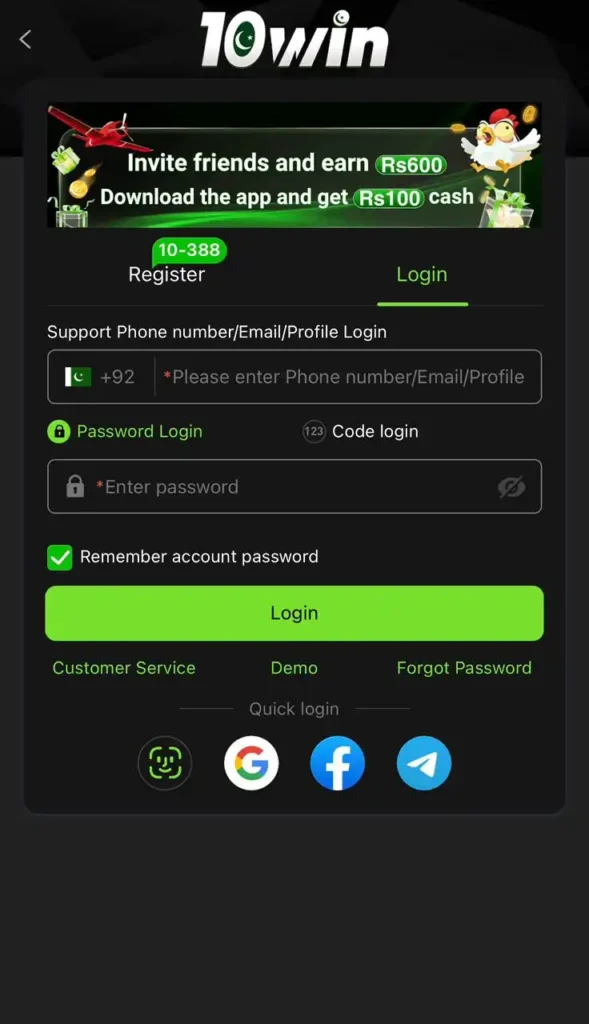
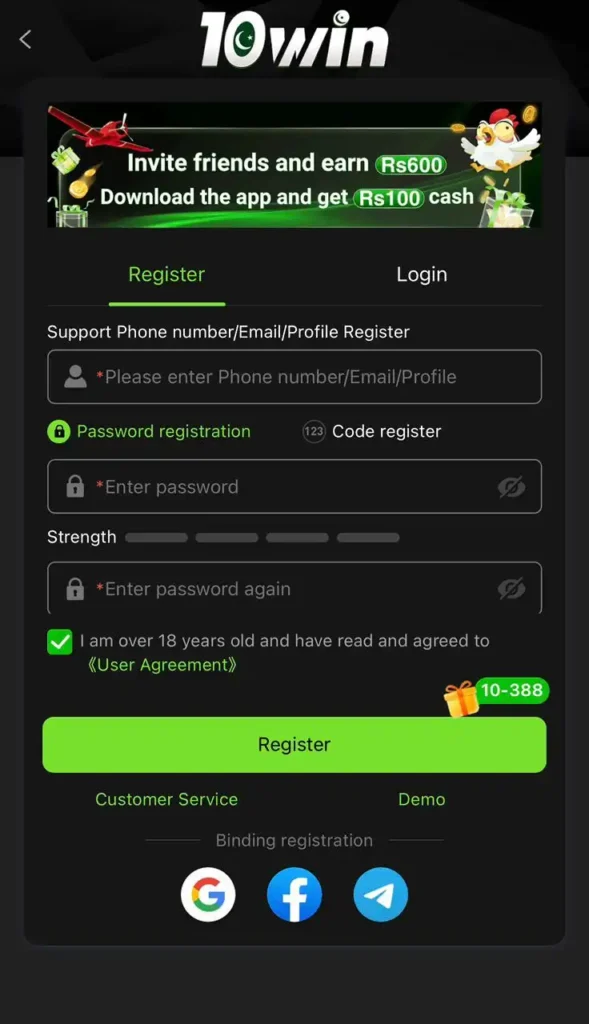
These two screenshots show the Login and Register pages of the 10Win Game. Below is a complete, simple, and human-written guide so anyone can create an account and log in easily.
1) 10Win Game Registration (Create New Account)
If you are a new user, you must register first.
✅ What you need before registering
- A Phone number / Email / Profile ID (the app supports all)
- A strong password
- You must be 18+ and accept the User Agreement
Step-by-Step Registration Process
- Open the app and tap Register
- In the first box, enter your:
- Phone number or
- Email or
- Profile ID
- Choose one method:
- Password registration (set your password)
- Code register (use OTP/code method)
- If you choose the password method:
- Enter a password
- Enter the password again (confirm)
- Tick the checkbox:
- “I am over 18 years old and have read and agreed to (User Agreement)”
- Tap the green Register button
✅ Your account will be created successfully once you complete these steps.
Registration Page Options
| Option on Screen | What it Means |
| Support Phone number/Email/Profile Register | You can register using phone, email, or profile |
| Password registration | Create an account using a password |
| Code register | Create an account using code/OTP |
| Strength bar | Shows how strong your password is |
| Enter the password again | Confirm the password to avoid mistakes |
| User Agreement checkbox | Required to register |
| Register button | Final step to create an account |
| Customer Service | Help/support if you face issues |
| Demo | Try demo mode (if available) |
| Binding registration icons | Link the account with the quick options shown |
2) 10Win Game Login (Sign In to Your Account)
If you already have an account, use the Login page.
Step-by-Step Login Process
- Open the app and tap Login
- Enter your:
- Phone number or
- Email or
- Profile ID
- Choose login method:
- Password Login (enter password)
- Code login (login using code/OTP)
- If using a password:
- Enter your password
- (Optional) Tick Remember account password to stay logged in
- Tap the green Login button
✅ That’s it, your account will open.
Login Page Options (From Screenshot)
| Option on Screen | What it Does |
| Support Phone number/Email/Profile Login | Log in using phone, email, or profile |
| Password Login | Log in using your password |
| Code login | Log in using OTP/code |
| Remember the account password | Saves password on device (optional) |
| Login button | Opens your account |
| Customer Service | Contact support |
| Demo | Try demo mode |
| Forgot Password | Reset your password |
| Quick login icons | Fast sign-in using the available icons |
Common Problems & Easy Fixes
If you can’t register
| Problem | Solution |
| Weak password | Make the password longer and stronger |
| Password not matching | Re-type “Enter password again” carefully |
| Checkbox not selected | Tick the 18+ User Agreement box |
| Wrong phone/email | Check and enter the correct details |
If you can’t log in
| Problem | Solution |
| Password required error | Enter password or switch to Code login |
| Forgot password | Tap Forgot Password and reset |
| Wrong ID/Email/Phone | Re-check your entered details |
| Code not received | Try again or use Password Login |
Short Summary
- Register: Enter phone/email/profile → set password or use code → accept agreement → tap Register
- Login: Enter phone/email/profile → password login or code login → tap Login